Convert PDF Bank Statements to Clean Excel or CSV (QuickBooks & Xero Ready)
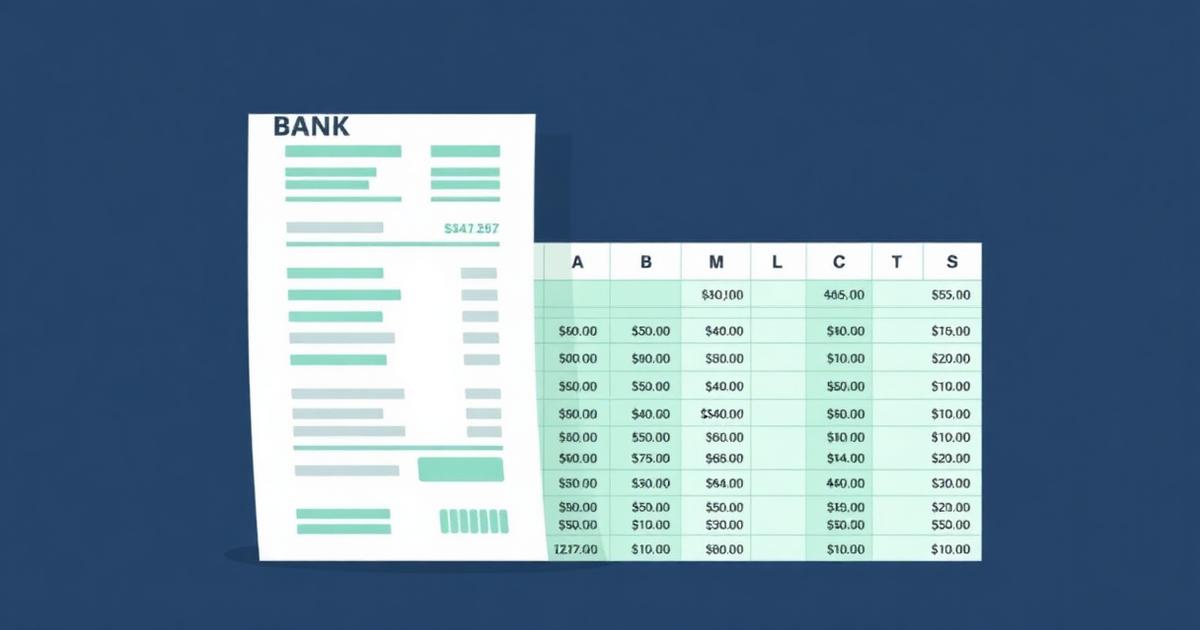
How to turn PDF bank statements and invoices into a tidy date, description, debit, credit and balance spreadsheet — including QuickBooks and Xero import formats — free and entirely in your browser.
Quick answer
To convert a PDF bank statement into a clean spreadsheet, open PDFWalle's Bank Statement to Excel converter, upload the statement, pick a Standard, QuickBooks or Xero export preset, and download the CSV or Excel file. Parsing runs locally in your browser, so financial data never leaves your device.
Key takeaways
- Generic PDF-to-Excel tools produce misaligned columns because they don't understand transactions.
- A statement-aware parser detects dates, merges wrapped descriptions, and separates debits, credits and running balance.
- Export presets remove the manual reshaping normally needed before importing into accounting software.
- Always reconcile the closing balance against the PDF before importing.
The Problem Every Bookkeeper Knows
Month-end arrives. Clients send bank statements as PDFs because that is what banks hand out. The accounting system wants a CSV with clean columns. Between those two facts sits an hour of copying, pasting and fixing.
Generic converters make it worse rather than better. They see a page of positioned text, not a ledger. So a description that wrapped onto a second line becomes its own row. A debit column and a credit column get merged into one. Running balances land in the amount field. You end up auditing the converter's output instead of the client's books.
Why Bank Statements Are Genuinely Hard to Parse
Statement PDFs are laid out for human reading, and every bank does it differently.
Wrapped descriptions. "CARD PAYMENT TO GLOBAL SUPPLIES LTD REF 88213 ON 14 MAR" frequently spans two or three physical lines. Only the first line carries the date, so the continuation lines look like orphan rows.
Ambiguous date formats. 03/04/2026 is 3 April in London and 4 March in New York. Getting this wrong silently shifts an entire month of transactions.
Inconsistent amount columns. Some banks print separate debit and credit columns. Others print one signed amount. Others use "DR"/"CR" suffixes, or brackets for negatives.
Page furniture. Headers, footers, page numbers, marketing blocks and repeated column titles appear on every page and must be discarded, not imported as transactions.
Carried-forward balances. "Balance brought forward" lines look like transactions but are not.
Try It: PDFWalle's Bank Statement Converter
How a Statement-Aware Parser Works
The converter treats the document as a ledger rather than as loose text, and applies four passes.
1. Date anchoring. Each line is tested against ISO, day-month-year and month-day-year patterns. A line that begins with a valid date starts a new transaction; a line that does not is treated as a continuation.
2. Description assembly. Continuation lines are appended to the transaction above them, collapsing extra whitespace so the final description reads as one clean string.
3. Amount extraction. Numeric clusters at the end of each line are collected in order. Thousands separators, currency symbols, bracketed negatives and DR/CR markers are all normalised into plain signed numbers.
4. Column inference. Where the statement provides only one amount, the converter compares consecutive running balances. If the balance went down, the amount is a debit; if it went up, a credit. That single inference resolves most of the ambiguity that trips up generic tools.
Export Presets That Match Your Accounting Software
Standard (five columns). Date, Description, Debit, Credit, Balance. The most readable format for review, reconciliation and spreadsheet formulas.
QuickBooks (three columns). Date, Description, Amount — with a single signed amount column, which is what the QuickBooks bank-transaction importer expects.
Xero. A column arrangement matching Xero's statement import template, so the mapping screen lines up on the first attempt.
Excel download. A spreadsheet file for when you want to review, filter and categorise before importing anything.
Step-by-Step Walkthrough
Step 1. Open the bank statement converter.
Step 2. Drop in the PDF statement. It is parsed in the browser immediately.
Step 3. Review the extracted table on screen. Check the first and last transactions and spot-check a wrapped description.
Step 4. Choose your export preset — Standard, QuickBooks or Xero.
Step 5. Download the CSV or Excel file and import it into your accounting system.
Reconciliation Checks Before You Import
Automated extraction should always be verified. Three checks catch almost every problem in under a minute.
Transaction count. Compare the number of rows against the statement's own count if it prints one.
Closing balance. Opening balance plus credits minus debits should equal the closing balance shown on the PDF. A mismatch points to a missed or duplicated line.
Date range. Confirm the first and last dates match the statement period, which also confirms the day/month order was interpreted correctly.
Scanned Statements Need OCR First
If the statement is a scan or a photograph, there is no text layer to parse. Run it through an OCR PDF tool to create a searchable version, then convert. Accuracy on scans depends heavily on scan quality, so verify the numbers carefully — a misread digit in an amount is far more damaging than a typo in a description.
Why Local Processing Matters Here More Than Anywhere
A bank statement is one of the most sensitive documents a business handles. It contains account numbers, counterparty names, salary payments and complete spending patterns. Uploading it to an unknown converter is a genuine data-protection incident waiting to happen, and for regulated firms it can be a reportable one.
This converter parses the PDF inside your browser using local JavaScript. No file upload, no server-side copy, no retention policy to trust. It is also why you can use it on client files without asking for permission first.
Frequently Asked Questions
Is the bank statement converter free?
Yes, it is free to use and needs no account for standard conversions.
Does my statement get uploaded to a server?
No. Parsing happens entirely in your browser and the document never leaves your device.
Which banks are supported?
The parser is format-agnostic rather than bank-specific. It works with any text-based statement PDF that lists dated transactions, which covers the vast majority of retail and business banks.
Can I import the output directly into QuickBooks or Xero?
Yes. Choose the matching preset and the column layout will align with each platform's import template.
Does it handle multi-line transaction descriptions?
Yes. Continuation lines without a leading date are merged into the transaction above.
What about invoices rather than statements?
Line-item invoices with dated rows extract well using the same logic. For general tabular PDFs, PDF to Excel is the better fit.
Can I convert several months at once?
Combine the statements with Merge PDF first, then convert the merged file in one pass.
Next Steps
Once the data is in a spreadsheet, the rest of the month-end workflow is ordinary bookkeeping. If you need to prepare the source documents, split multi-account statements, remove a password from a protected bank PDF, or compress the archive copy. For documentation rather than numbers, see our guide to converting PDFs to Markdown.
Convert your first bank statement now → Free, private, and ready for QuickBooks or Xero. See the full toolkit on the all tools page.