A4 to Letter and Letter to A4 Without Cropping
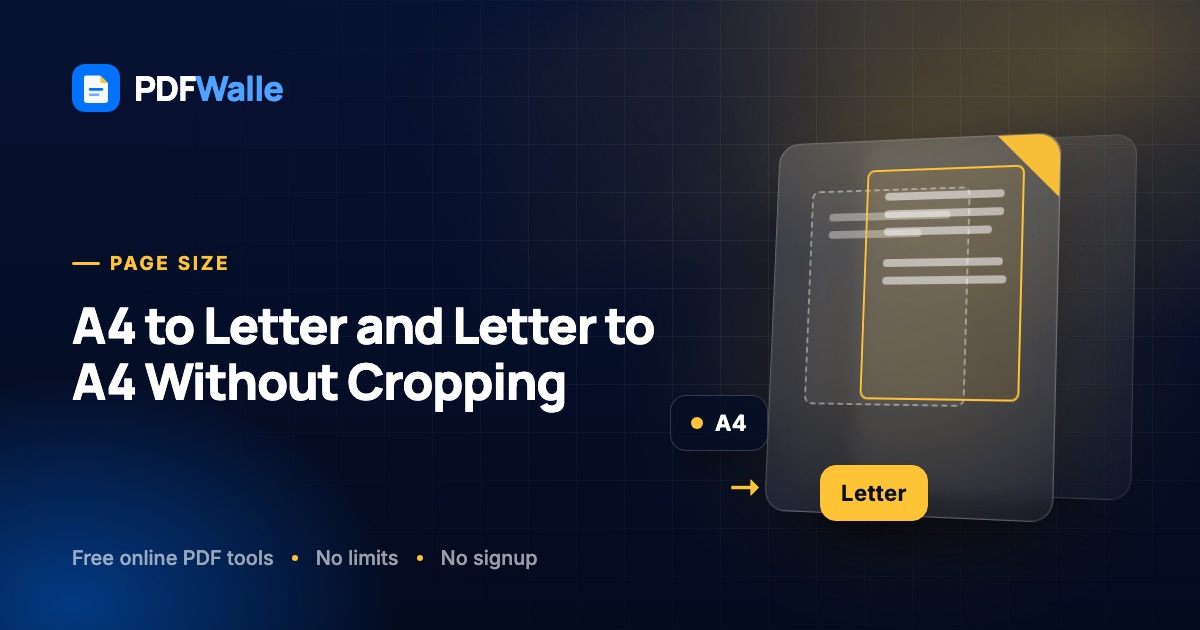
Learn how to resize PDFs between A4 and US Letter in both directions without cropped edges or blurred text, and why Fit beats Fill for documents.
Short answer: A4 and US Letter have different proportions, so no conversion between them can be both uncropped and borderless. To convert without cropping, choose a Fit scaling mode: the whole page is scaled to sit inside the new sheet, which leaves a thin white band on two edges but keeps every line of text and every margin note. The Letter to A4 converter does this in your browser in both directions, scaling content as vector data so nothing is re-rendered or blurred. The rest of this guide explains why the band appears, when Fill or Stretch is the better choice, and how to stop your printer from undoing the conversion.
Why the two sizes do not line up
US Letter is 8.5 by 11 inches, or 216 by 279 mm. A4 is 210 by 297 mm. Letter is 6 mm wider and A4 is 18 mm taller. The aspect ratios differ: Letter is 1:1.29, A4 is 1:1.41.
That ratio mismatch is the whole problem. If you scale a Letter page so its width matches A4, it comes out 288 mm tall, 9 mm short of the A4 sheet. If you scale it so its height matches A4, it comes out 226 mm wide, 16 mm too wide, and the edges are cropped. Going the other way, A4 to Letter, the same thing happens in reverse. There is no single scale factor that fills the sheet exactly, so every converter is making a choice, whether it tells you or not.
The three scaling modes
Fit: nothing cropped, small bands
The page is scaled uniformly until the whole thing fits inside the target. Letter to A4 at Fit scales by about 97%, leaving a band of roughly 4.5 mm top and bottom. A4 to Letter scales by about 94%, leaving about 8 mm left and right. Text, line spacing and images keep their proportions. This is the right choice for contracts, reports, CVs, forms, academic papers and anything with content near the margins.
Fill: no bands, edges trimmed
The page is scaled uniformly until it covers the target sheet, and whatever overflows is cropped. Letter to A4 loses about 8 mm from the left and right combined; A4 to Letter loses about 18 mm from top and bottom combined. Use this for posters, full-bleed designs and photo pages where the outer edge is empty or decorative. Do not use it for anything with page numbers, headers or footers near the edge.
Stretch: no bands, no crop, slight distortion
Width and height are scaled independently so the page exactly matches the target. Letter to A4 compresses the width by 3% and stretches the height by 6%. Letters become fractionally taller and narrower. Most readers will not notice on body text, but circles become ovals and photographs look subtly wrong. It is useful for forms that must register exactly with a pre-printed overlay, and almost nothing else.
What breaks and how to fix it
Text at the bottom of the page is cut off
The converter used Fill, or the original was printed with "Fit to page" and then scanned. Fix: convert again with Fit. If the source is a scan that was already cropped, the content is gone and you need the original file.
There is a white band and the client does not want it
This is Fit doing its job. Fix: you have three options. Accept the band (it is 4 to 8 mm and invisible once printed and trimmed). Use Fill if the page edges carry nothing important. Or go back to the source document, change the page size there and re-export, which is the only way to get a true A4 layout with reflowed text.
The converted page looks blurry
The converter rasterised the page, turning text into an image, and then scaled the image. Fix: use a converter that embeds the original page as a vector object and scales it mathematically. PDFWalle's Letter to A4 tool does this, so text stays sharp, selectable and searchable at any zoom. If your source PDF is itself a scan, it was already an image and no converter can add sharpness; keep the scan at its original resolution and use Fit.
Pages are in mixed orientations after conversion
Landscape pages were forced to portrait, or the reverse. Fix: set orientation to "Keep original" so each page keeps its own orientation and is scaled into the matching A4 or Letter landscape frame.
The printer still scales the document
You converted correctly, but the print dialog is set to "Fit to printable area" and the printer applied a second scale, or the tray is loaded with the wrong paper. Fix: set page scaling to "Actual size" or 100% and confirm the paper size in the print dialog matches the tray. This is the most common reason a correct conversion "did not work".
Headers and footers now sit inside the printable area margin
Some printers cannot print within 5 mm of the edge, and content that was already close to the edge is now clipped by the printer rather than the converter. Fix: add a safety margin of 5 to 10 points in the converter so the whole page is pulled slightly inward.
A form no longer lines up with the overlay
Uniform scaling changed the field positions. Fix: this is the one case for Stretch, which maps every coordinate to the new page exactly. Check with a test print before a full run.
Which direction are you going?
Letter to A4 is the common case for people outside North America who receive US documents: universities, visa offices and courts in A4 countries expect A4 and will often scale or crop a Letter upload. Fit produces a page that is 97% size with small top and bottom bands, which every A4 printer handles cleanly.
A4 to Letter is the reverse problem: a European CV or an Indian certificate sent to a US employer or agency. At Fit the content is 94% size with narrow side bands. Because Letter is shorter, the vertical scale is the limiting one, so long pages lose slightly more size than in the other direction. It is still far better than letting a US printer chop 18 mm off the bottom of an A4 page.
The same tool converts in both directions and also targets Legal, A3 and A5, so a mixed set can be standardised to one size in one pass.
Step by step with the Letter to A4 converter
- Open the Letter to A4 converter. It runs entirely in your browser. The PDF is never uploaded, there is no file size limit beyond your device's memory, and nothing is stored.
- Upload the PDF. Drag it in or click to browse. The page count appears straight away.
- Choose the target size. A4 for Letter documents going abroad; Letter for A4 documents going to the US; Legal, A3 or A5 if the destination asks for them.
- Set orientation to "Keep original" unless every page should be forced one way.
- Pick the scaling mode. Fit for documents, Fill for full-bleed artwork, Stretch only for forms that must register exactly.
- Add a safety margin if needed. A margin of 5 to 10 points keeps content clear of a printer's non-printable edge.
- Convert and download. Open the result and check the first page and the last page at 100% zoom. Then print one page at "Actual size" to confirm the printer is not rescaling.
When resizing is the wrong tool
Resizing scales a finished page. It cannot reflow text, change margins or move a footer. If a document will be judged on its layout, such as a thesis with a strict margin rule or a form with a specified font size, change the page size in the source application (Word, Google Docs, LaTeX, InDesign) and export a fresh PDF. Resizing is for documents you did not create and cannot regenerate: signed contracts, received invoices, scanned certificates and anything from a third party.
Frequently asked questions
Can I convert A4 to Letter without cropping?
Yes. Choose Fit as the scaling mode. The A4 page is scaled to about 94% so it sits inside the Letter sheet, leaving a narrow white band on the left and right and cropping nothing.
Why is there a white band after converting Letter to A4?
Because A4 is taller and narrower than Letter. Scaling the page to fit the width leaves about 4.5 mm spare at the top and bottom. The band is the price of not cropping; it disappears once the page is printed and trimmed or bound.
Does resizing reduce the quality of the PDF?
No. The original page is embedded as a vector object and scaled mathematically, so text stays sharp, selectable and searchable, and images keep their original pixels. Scanned PDFs keep their original resolution.
Which mode should I use for a CV or a contract?
Fit. Edge content such as page numbers, footers and signature lines must survive, and a few millimetres of white space does no harm. Use Fill only for artwork and Stretch only for forms that need exact registration.
Is my PDF uploaded to a server?
No. The Letter to A4 converter runs entirely in your browser. The file never leaves your device, which is why there is no file size limit beyond your own memory and nothing to delete afterwards.
Convert in either direction with the Letter to A4 converter. It runs in your browser and nothing is uploaded.